Opening & Saving
Opening a PDF Document
Use the file explorer to open a PDF document. Options are available to open a document from:
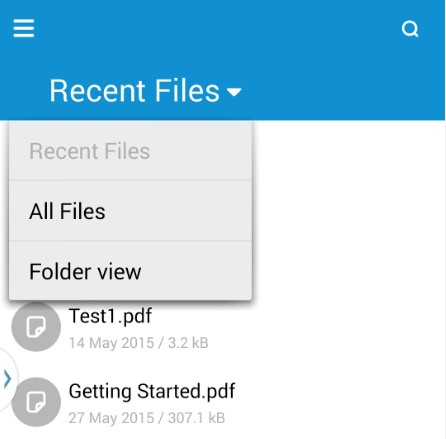
- Folder View
- Recent Files
- All Files
Use the hardware Menu key or Menu icon:  to modify the list view. Depending on the Android device being used, either a Menu icon or the hardware Menu key will enable this.

The custom file explorer gives access to PDF documents.
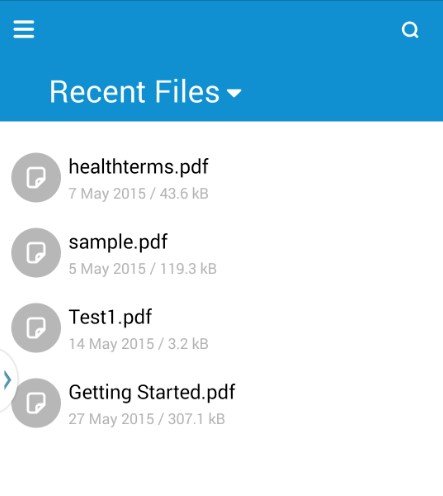
Use the dropdown selection to change the access method:
Saving a PDF document
To save a document, select the Menu icon: or press the Menu key on the Android device.
It displays the available options:
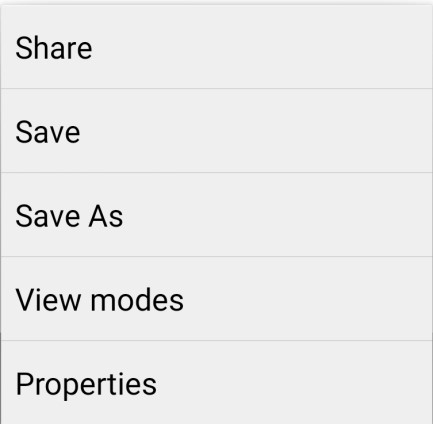
The user may then choose how they wish to share or save the document.
To abandon changes to a document, select the Back icon:  or press the Back key on the Android device. It displays the available options:
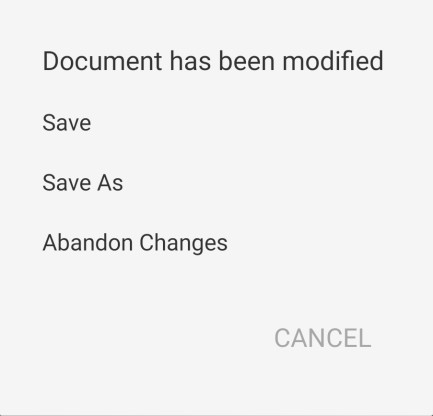
The option "Abandon Changes" may then be selected.
NB: When the file is saved, a signature credit count is deducted for each signature in the document. If the document changes are abandoned, no change will be made to the credit count.
a) Save
The document is overwritten.
b) Save As
Select a folder and filename to save the document. The PDF extension is automatically added to the filename.
c) Share
To use this option, the document in question must first be saved.
The Share selection dialog is displayed listing any installed applications that will accept a shared file. For example, an Email application will automatically attach the PDF document to a new email ready for sending.
